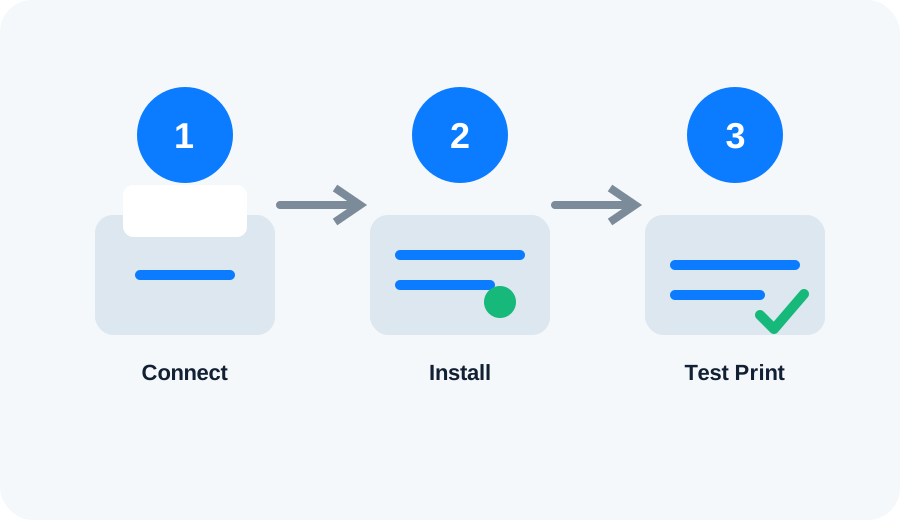
What this guide covers: Connect the printer to wireless, add it to Windows, and verify the network path.
Prepare the Canon PIXMA TS3522
Turn the printer on, have the Wi‑Fi password available, and check whether your router uses a 2.4 GHz network, 5 GHz network, or both. Printer wireless support varies by model.
Connect to Wi‑Fi
Use the printer's wireless setup menu or the official Canon setup utility. After joining the network, print a network status page if the model provides one.
Add it to Windows
Open Settings → Bluetooth & devices → Printers & scanners → Add device. If discovery fails, verify that the computer and printer are on the same network and temporarily disconnect any VPN while testing.
Verify
Send a small test page. If the printer works immediately after setup but becomes offline later, investigate IP-address changes, router isolation or sleep/network settings.